How to turn a PDF, research paper or Word doc into slides with AI
Updated 2026-11-03
Gamma AI Slide reads the PDF, research paper or Word (.docx) file you upload, drafts an outline you can check and change, and then builds the slides. You export them as a PowerPoint file (PPTX) whose text and tables stay editable, or as a PDF.
It is not a page-by-page converter: it does not copy each PDF page onto a slide. The AI reads the document and writes a presentation from it, with the number of slides and the order you ask for. Writing the outline and exporting are free; generating the slides uses credits.
Four steps
Describe the deck and add your files
In the box on the home page, say what the deck is for, roughly how many slides, and in what order. For example: "Turn the attached paper into 12 slides for our lab meeting: background, method, results, discussion."
Click "Add files" to attach the PDF or Word (.docx) file. You can add several files at once, Excel sheets and images included.
Pick the deck language under "Language": the outline and the slides are written in it, so a paper in one language can become slides in another. Click "Next", then choose quick mode or deep mode.
Fix the outline the AI writes
The AI reads your files and writes one card per slide: a title, the key points and a layout. Nothing is charged up to here.
Edit any card directly, drag cards to reorder them, add or delete cards, or use "Rewrite this card with AI" on one card only.
If a card needs a figure your files do not contain, a note under the card says so ("Not in your materials: …"). Add a source that has it, or click "Say it without figures" to rewrite that card.
On the right, pick how much text goes on each slide (Minimal, Concise or Detailed) and a design.
Generate the slides
Click "Generate presentation" and the slides appear one by one as they are done. Quick mode fills the layouts of a template; in deep mode the AI designs each slide.
Afterwards you can edit the text in the editor or ask the AI for changes, such as "Turn slide 3 into a table".
Export an editable PPTX
Click "Export" and choose "PowerPoint (.pptx)". Text comes out as text boxes and tables as PowerPoint tables, ready to edit in PowerPoint or Keynote. PDF is there too.
Before you export, it lists figures without a source and anything still marked TBD. You can also tick "Add a sources page at the end".
A real example: a Word course draft into 10 slides
This is the recorded run behind our course-design replay (October 20, 2026, deep mode). One Word (.docx) course draft was attached, with the request: "Make a course design overview for the curriculum committee to review. Stick to the draft; don't add outside facts or figures. 10 slides."
The outline was ready about 16 seconds after the request, and all 10 slides about 71 seconds after it. One AI edit followed; the run used 31 credits (10 deep-mode slides at 3 credits each, plus the edit).
data-literacy-101-course-draft.docx
4. Schedule
4 weeks, 2 sessions a week, 90 minutes each: 8 sessions in total.
| Session | Topic | In-class activity | Students can then |
|---|---|---|---|
| 1 | Where data comes from: rows, columns and data types | Find the problems in a messy table | Say what makes a table hard to use |
| 2 | Cleaning data: duplicates, consistent formats, blanks | Clean up an event sign-up sheet | Turn a messy table into one that is ready to count |
| 3 | Sorting and filtering | Find the three busiest weeks for library loans | Find the rows that match a condition quickly |
… (through session 8; the course goals are in section 3 of the draft)
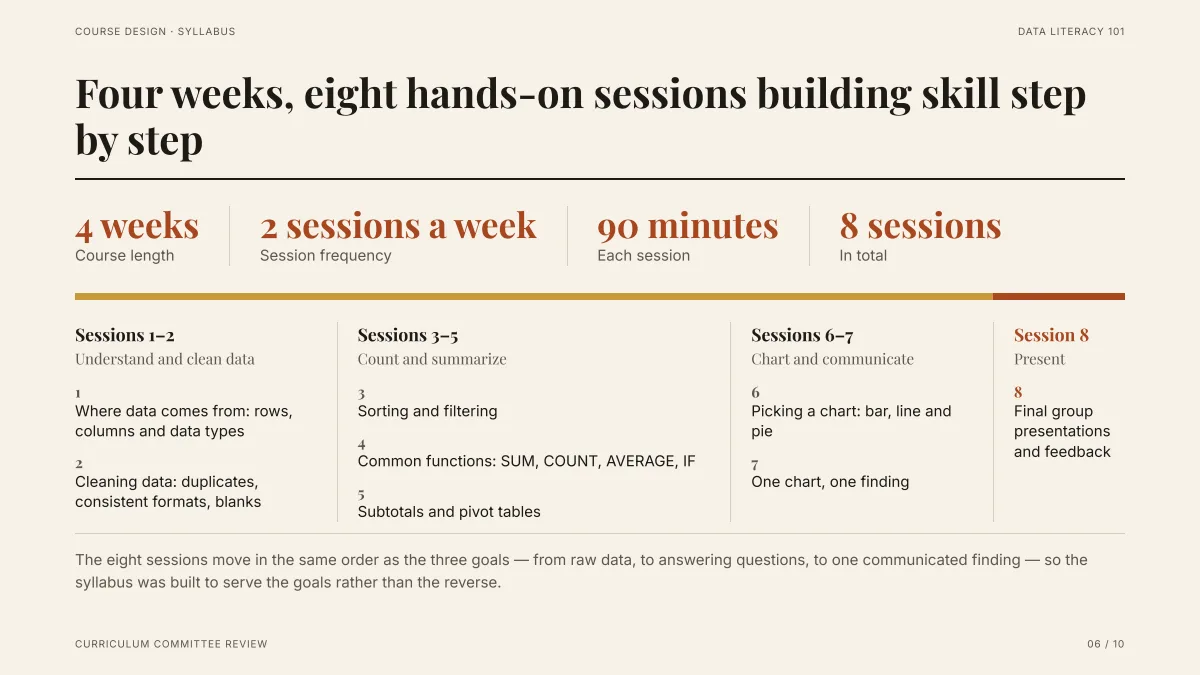
- The four figures across the top come from one line of the draft: "4 weeks, 2 sessions a week, 90 minutes each: 8 sessions in total". Every number on the slide is in the draft.
- The draft lists the sessions in one section and the three course goals in another. The slide groups the eight sessions under those goals (clean the data, count and summarize, chart and communicate), with the final presentation last.
- In the exported PPTX every word on this slide is in an editable text box. Across all 10 slides, no text was turned into a picture.
Can you edit the text in the exported PPTX?
With "PowerPoint (.pptx)", text becomes text boxes, tables become PowerPoint tables, and cards, color blocks and lines become shapes. Slides are not flattened into pictures, so you can change the words in PowerPoint or Keynote.
Some things do export as pictures:
- Photos, illustrations and icons
- Charts (to change the numbers, edit the chart in the editor and export again)
- Gradient backgrounds and shadows
If the file has to look exactly like the web view, choose "PowerPoint, picture version (.pptx)" instead. Its text cannot be edited.
Fonts and layout
Choose how much text each slide carries: Minimal, Concise or Detailed (about 50, 100 or 150 words per slide).
In quick mode, text that would overflow a card is set smaller so that it fits.
The PPTX keeps the line breaks and spacing of the web view. Fonts are named in the file, not embedded: the example above names Inter and Playfair Display. On a computer without them, PowerPoint draws a substitute font that can be wider or narrower, so line breaks may move.
To avoid that, install the fonts the deck names (these two are free on Google Fonts), or switch them all to a font you have with Replace Fonts in PowerPoint (Home → Replace on Windows, Format on a Mac).
No made-up numbers
Each figure taken from your files is recorded with where it came from: the PDF page, or the Word paragraph or table. Click a figure on a slide to see its source.
Where a slide would need a number your files do not have, it writes TBD instead of inventing one. In the example above the draft gives no budget amount, so the budget line on the last slide says TBD.
Which files work
- PDF: PDFs with a text layer. A scanned PDF whose pages are only pictures cannot be read yet.
- Word: .docx. Save an old .doc file as .docx in Word first.
- You can also add Excel (.xlsx), PowerPoint (.pptx), text files and images: up to 25 MB per file, and up to 24 files or 64 MB in total at once.
- For a long document, the outline follows the Word headings or the PDF bookmarks, and each slide is written from the paragraphs that belong to it.
- Figures and photos inside a PDF or Word file are not read. To put one on a slide, add it as a PNG or JPG file.
Questions
Can I turn a research paper PDF into slides for a conference talk or thesis defense?
Yes. Add the PDF and give the slide count and structure, for example "12 slides for a 15-minute talk: background, method, results, discussion". The outline shows every slide's title and points before anything is generated, so you can fit it to your time slot first.
Is this the same as a PDF to PPT converter?
No. A converter copies each PDF page onto a slide as it is. Here the AI reads the document and writes a new presentation from it, so a 30-page report can become 10 slides with one point each. What you export is still an editable PPTX.
Can it make English slides from a paper in another language?
Yes. Pick English under "Language" and the outline and the slides are written in English. Check how terms were translated on the outline cards before you generate.
How much does it cost?
Writing the outline and exporting PPTX or PDF are free. Generating slides and AI edits use credits: 1 per quick-mode slide, 3 per deep-mode slide, 1 per edit. New accounts get free credits, and credit packs are one-time purchases with no subscription. See the Pricing page.
Is my document used to train AI?
We do not use your files to train AI models. They are sent to AI providers to make your slides. See the Privacy Policy for details.
Try it with your own file
Writing the outline is free. Add a PDF or Word file and see how the AI would structure the deck.
Add a file and start