How teachers can make lesson slides with AI from their own notes
Updated 2026-11-05
Add your lesson notes (a Word file, a PDF with selectable text or an Excel sheet), say the grade, the topic and the number of slides, and choose the scenario "Lesson" and audience "Students". The AI writes an outline (objectives, explanation, examples, recap) for you to check, then builds the slides. A 12-slide lesson in quick mode is 12 credits, and the 20 free credits at sign-up cover one of them plus a few AI edits.
You stay in control of the content: use only your own notes by saying "stick to the notes; don't add outside facts", edit every outline card before anything is built, and export an editable PowerPoint to adjust in class.
Four steps
Add your notes and describe the lesson
Click "Add files" and add your notes. In the box write the grade, the topic, the length and any rule: "A 12-slide lesson for Grade 9 on linear equations from the attached notes. Stick to the notes; use two worked examples."
Choose the "Language" the students read.
Set the scenario and audience
After "Next", on the outline screen open "More": "Scenario" = "Lesson", "Audience" = "Students". The scenario builds a lesson (objectives, explanation, examples, recap); the audience builds step by step, defines terms and uses examples. For "Text per slide", "Concise" is about 100 words, "Detailed" about 150.
Check the outline like a lesson plan
Read the cards in teaching order. Reorder, merge or delete; rewrite one card with AI if an explanation is too hard. This step is free.
Generate, tighten, export
Click "Generate presentation". Then ask for changes in one sentence, such as "Make the learning goals on slide 3 more specific: start each with 'By the end of the lesson, students can'" (1 credit). Export PowerPoint (.pptx) or PDF for printing handouts.
A real example: the rhythm of a session, from a course draft
This is not a classroom lesson: it is our recorded "Course design overview" (October 19, 2026), a deck for a curriculum committee made from a Word course draft. We include it because it shows how the AI treats a teacher's own draft: nothing outside the draft is added, and a teaching rhythm becomes a clear picture.
The same run also shows the edit above: "Make the course goals on slide 5 more specific: start each one with 'By the end of the course, students can'". Slide 5 now begins each goal that way.
data-literacy-101-course-draft.docx
5. How each session runs
Each of the eight 90-minute sessions has the same rhythm: a brief explanation and demonstration, then hands-on practice, then a wrap-up.
(A paraphrase of the section; the minutes on the slide come from the draft.)
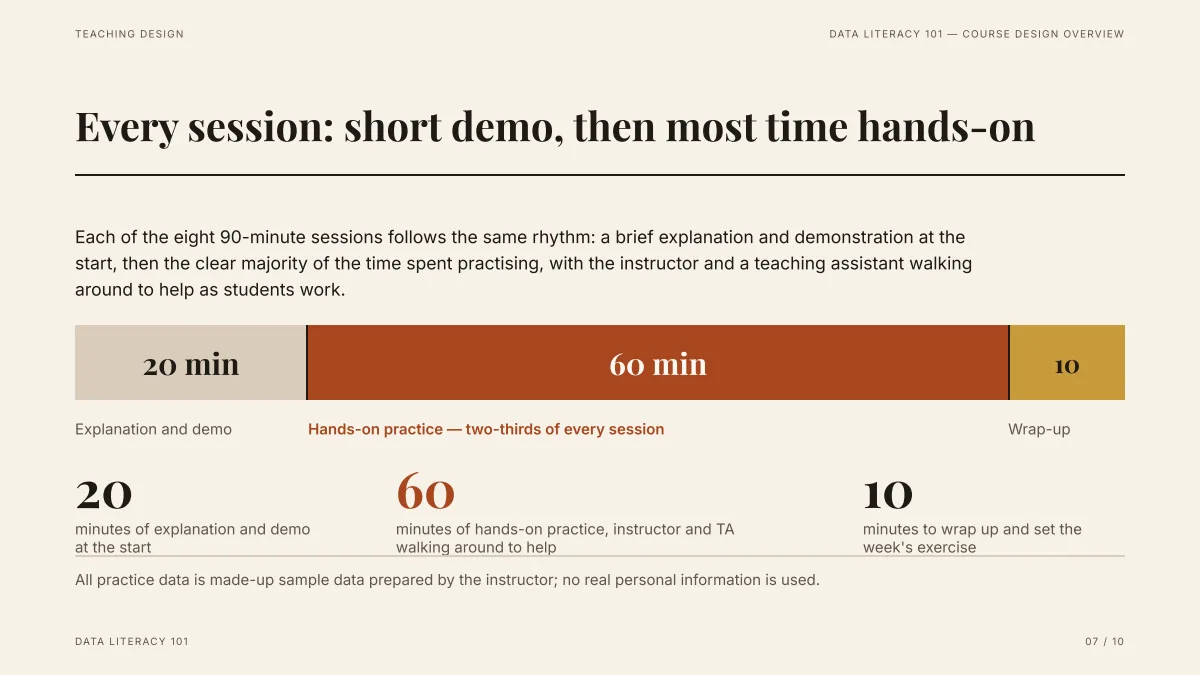
- The 20, 60 and 10 minutes add up to the 90-minute session in the draft.
- The made-up sample data note ("no real personal information is used") is the draft's own sentence.
- In the exported PowerPoint the labels are text boxes, so you can change a number for your own class.
Prompts for common teaching decks
Templates to adapt (not recorded runs):
| Deck | Prompt |
|---|---|
| One lesson | A 12-slide lesson for [grade] on [topic] from the attached notes: goals, explanation, two worked examples, a practice question, recap. Stick to the notes. |
| Revision before a test | A 10-slide revision deck on [unit] for [grade]: the five ideas most often missed, one example each, and a checklist at the end. |
| Unit overview | An 8-slide overview of the [unit] unit: what students will learn, the order of lessons, how it is assessed. |
| Parents' evening | A 6-slide presentation for parents: what we teach this term, how it is graded, how they can help at home. Plain words. |
| Lab or hands-on | A 10-slide guide for the [activity] session: aim, materials, steps in order, safety, what to record. |
What can I upload as source material?
- Word (.docx) lesson notes, PDFs with selectable text, Excel sheets, PowerPoint files, text and images.
- Up to 25 MB per file, 24 files and 64 MB per request, and up to 30 slides.
- Scanned worksheets (pages that are pictures) are not read. Use only material you have the right to use.
What the AI will not guarantee
- It can write an explanation that is too hard or wrong for your class. Read every card as the teacher.
- Numbers and examples you did not give are marked "TBD" or looked up from the web; check any it adds.
- It does not know your curriculum standards unless you paste them in.
Questions
Can AI make a lesson presentation from my notes?
Yes. Add the notes, choose the Lesson scenario and Students audience, and review the outline before the slides are built.
How many lessons can I make for free?
New accounts get 20 free credits. A 12-slide quick-mode lesson is 12 credits, so one lesson and a few edits. Outlines are free to write and rewrite (with an hourly limit of 20 outline writes per account).
Can I print handouts?
Export a PDF (one slide per page, 16:9) and print it from there, or export PowerPoint and use its print options.
Can students see the slides without an account?
Slides live in your account; share the exported PowerPoint or PDF file.
How much does it cost?
Writing the outline is free. Quick mode costs 1 credit per slide, deep mode 3, each AI edit 1, and exporting is free. New accounts get 20 free credits; credit packs are one-time purchases (for example $5.99 for 40 credits plus 10 bonus) with no subscription, and credits never expire. See the Pricing page.
Turn your next lesson into slides
Add your notes and read the outline first. It is free.
Start a lesson deck