How to turn a Word document into a PowerPoint with AI
Updated 2026-11-05
Add the .docx on the home page and describe the presentation you want. The AI reads the document's headings, text and tables, writes an outline with one card per slide, and builds the slides after you approve it. In our recording, an 11-section Word draft became a 10-slide deck. Exports are editable PowerPoint (.pptx) or PDF.
It does not paste the document into slides. Sections are regrouped into a story for the audience you name, long text is shortened to key points, and anything the Word file does not say is left as "TBD" instead of being invented. Old .doc files must be saved as .docx first.
Four steps
Check the headings in your Word file
The structure of a long document is read from its heading styles (Heading 1, Heading 2). If your sections are just bold text, the AI has less to go on: apply real heading styles first, or say the order you want in the request.
Add the file and say who it is for
Click "Add files", pick the .docx and write, for example: "Using the attached course draft, make an overview for the curriculum committee. Stick to the draft; don't add outside facts or figures. 10 slides, with the support needed and the budget on the last slide."
Pick the "Language", click "Next", and choose "Quick mode" (1 credit per slide) or "Deep mode" (3 credits per slide).
Read the outline against your document
Each card is one slide: title, key points and layout. Reorder, merge or delete cards, or rewrite one card with AI. If a card uses a number that is not in your file, the card says so and the slide will show "TBD". This step is free.
Generate and export to PowerPoint
Click "Generate presentation". In the editor, click a number to see where in your Word file it came from. Then "Export" and choose PowerPoint (.pptx): text is in text boxes and tables are native tables.
A real example: how 11 Word sections became 10 slides
This is our "Course design overview" run (October 19, 2026, deep mode). The Word draft has 11 numbered sections and two tables. The request is the one quoted in step 2. The 10 slides took 31 credits including one AI edit.
The mapping below is read off the draft's headings and the generated slide titles. Slide 1 is a cover the AI added.
| Section in the Word file | Slide in the deck |
|---|---|
| 1. Why this course | 2 (the problem) and 3 (pilot evidence) |
| 2. Who it is for | 4 |
| 3. Course goals | 5 |
| 4. Schedule (a table) | 6 |
| 5. How each session runs | 7 |
| 7. Grading and 8. How the final report is graded | 8 |
| 9. What the pilot showed, and what changed | 9 |
| 10. Teaching resources and 11. Support needed | 10 |
data-literacy-101-course-draft.docx
4. Schedule
4 weeks, 2 sessions a week, 90 minutes each: 8 sessions in total.
| Session | Topic | In-class activity |
|---|---|---|
| 1 | Where data comes from: rows, columns and data types | Find the problems in a messy table |
| 2 | Cleaning data: duplicates, consistent formats, blanks | Clean up an event sign-up sheet |
| 3 | Sorting and filtering | Find the three busiest weeks for library loans |
(Sessions 1 to 3 of 8. The table also has a fourth column, "Students can then".)
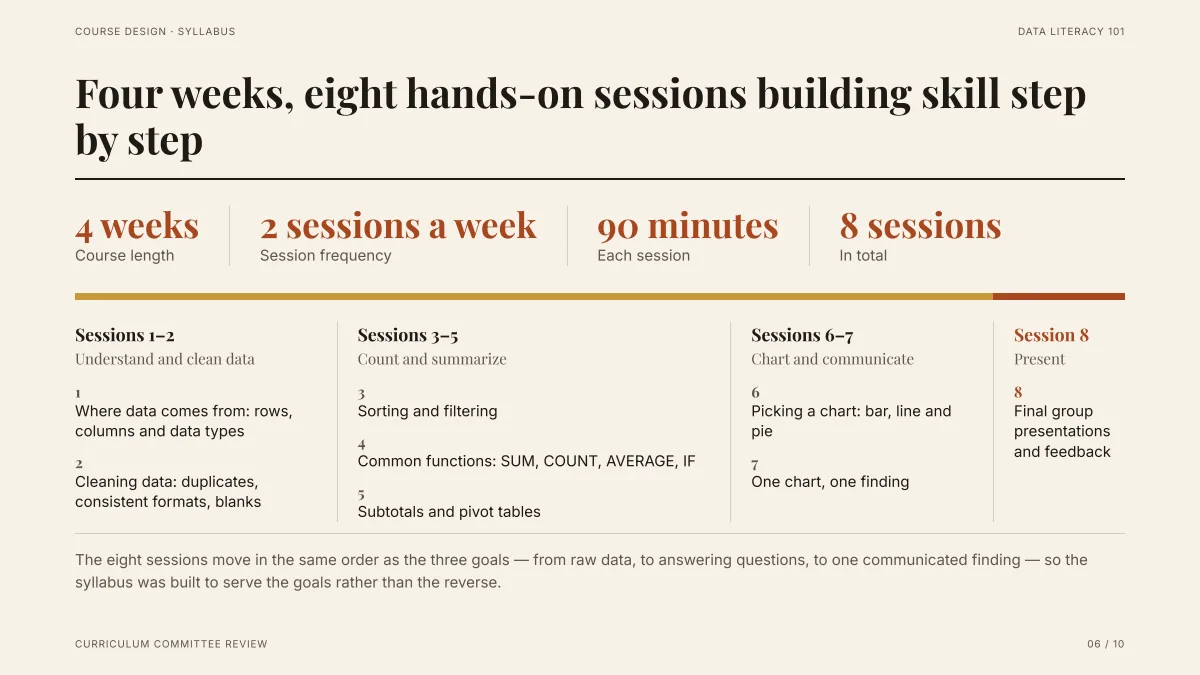
- The sentence above the table (4 weeks, 2 sessions a week, 90 minutes, 8 in total) became four headline figures, and the eight table rows were grouped into a story: understand and clean, count and summarize, chart and communicate, present.
- The topics are worded as in the Word table; its "In-class activity" column is not on this slide.
- The budget is a good example of "TBD": section 11 does not state an amount, so the last slide says "Not specified in the draft; to be confirmed with the committee".
What is read from a Word file, and what is not?
- Read: paragraph text, headings, bullet lists and table cells.
- Not read: pictures and drawings inside the Word file. Save a picture as PNG or JPG and add it separately if you want it on a slide.
- Old .doc files: not read. In Word, use Save As and choose .docx.
- Limits: 25 MB per file, up to 24 files and 64 MB in total; up to 30 slides per deck.
Does the AI make up numbers that are not in my document?
It is told to use only figures from your file, your request and any web sources it found, and to write "TBD" where a figure is missing. Each figure on a slide can be traced back to the place in your file it came from, and before export you see how many figures have a source and how many are TBD.
Still check the numbers yourself before you present: the check can only tell you whether a figure matches your source, not whether the source is right.
Tips for better slides from a Word draft
- Name the audience and the decision: "for the committee, ending with what we need".
- Say the number of slides. A request such as "10 slides" is honoured (up to 30).
- Ask for a change afterwards, in one sentence: "Make the course goals on slide 5 more specific: start each one with 'By the end of the course, students can'." Each such request is 1 credit.
Questions
Can AI convert a Word document to PowerPoint?
Yes: it reads the .docx, writes an outline you can edit, and builds the slides. It rewrites the content as a presentation rather than copying pages.
Do I need heading styles in Word?
They help. Long documents are structured from their headings. Without them, state the sections and their order in your request.
What happens to the tables in my Word file?
Their cells are read. A table may become a table slide, headline figures or grouped lists, depending on what suits the audience. In the PPTX export, tables stay native PowerPoint tables.
Can I use a .doc file?
Not directly. Save it as .docx in Word first.
How much does it cost?
Writing the outline is free. Quick mode costs 1 credit per slide, deep mode 3, each AI edit 1, and exporting is free. New accounts get 20 free credits; credit packs are one-time purchases (for example $5.99 for 40 credits plus 10 bonus) with no subscription, and credits never expire. See the Pricing page.
Try it with your document
Add the .docx, read the outline, then decide. The outline is free.
Add a Word file and start