How to make a presentation from text with an AI presentation maker
Updated 2026-11-04
Type what the presentation is for, who it is for and how many slides you want. Gamma AI Slide looks up the topic, writes an outline with one card per slide, waits while you check it, and then builds the slides. A 12-slide management deck took 77 seconds to reach the outline and 19 more seconds to build the slides after the outline was approved. The outline is free; 12 quick-mode slides cost 12 credits.
You are not stuck with the first draft. Edit the outline cards before anything is generated, ask the AI to change a slide afterwards ("turn the budget into a donut chart"), and export a PowerPoint (.pptx) whose text stays editable, or a PDF.
Four steps
Describe the presentation in the box on the home page
Say what it is, who it is for, how long it should be, and give the facts you already know: dates, budget, targets. The more real numbers you give, the fewer the AI has to guess. A sentence or two works, but a short paragraph gives a better first draft.
Pick the deck language under "Language", then click "Next" and choose "Quick mode" (marked "Recommended") or "Deep mode". Quick mode builds the slides from a library of layouts; deep mode has the AI design every slide.
In quick mode you can pick a template next, or skip it. The recorded run used "Slate".
Let the AI research and ask a few questions
With no files attached, the AI first looks things up ("Researching to work out what to cover…") and shows how many sources it found. In the recorded run that was 12.
It then asks a few questions about your request, such as what decision the deck should drive, with a recommended answer already picked ("Recommended by AI"). Change an answer or skip the questions.
Review and edit the outline, then generate
The outline arrives card by card: a title, the key points and a layout for each slide. Edit any card, drag cards to reorder them, add or delete cards, or use "Rewrite this card with AI" on one card only. Nothing is charged up to here.
Set "Text per slide" (Minimal, Concise, Detailed or Extensive), the tone, the audience and the scenario, then click "Generate presentation". The slides appear one by one as they are done.
Change slides with the AI, then export
Ask for changes in the AI panel, for example "Shorten slide 4 to three points". Each request is a new version you can compare with the one before and undo. Clicking text on a slide to fix a word yourself is free.
Click "Export" and choose PowerPoint (.pptx) or PDF. The text in the PPTX stays editable in PowerPoint or Keynote.
A real example: a launch plan for management, in 12 slides
This is the recorded run behind our "New product launch plan" replay (October 19, 2026, quick mode, the Slate template, concise text, no images). The brand is made up. Nothing was typed except the prompt below, and the recording does not include the time a person would spend reading the outline.
- The AI found 12 sources and the outline was ready 77 seconds after the prompt was sent.
- The 12 slides were all done 19 seconds after the outline was approved, 97 seconds in total.
- One follow-up request, "Turn the budget breakdown on slide 9 into a donut chart, and say which item is the largest in the title", came back about 21 seconds later.
The run used 13 credits: 12 quick-mode slides at 1 credit each, plus the one edit.
Prompt (English)
Launch marketing plan, 12 slides
Make a launch marketing plan for a new product. Tsukiao Coffee, a made-up coffee brand, is launching a hojicha oat latte this fall for office workers aged 25 to 35. The campaign runs 6 weeks with a $40,000 budget; the first-month targets are 20,000 cups sold and 5,000 new members. Channels: social media, in-store events and delivery apps. Look at how oat-milk coffee and hojicha drinks have done over the past two years, but don't name real brands or companies. It's for the management team, 12 slides.
(The whole prompt. No file was attached.)
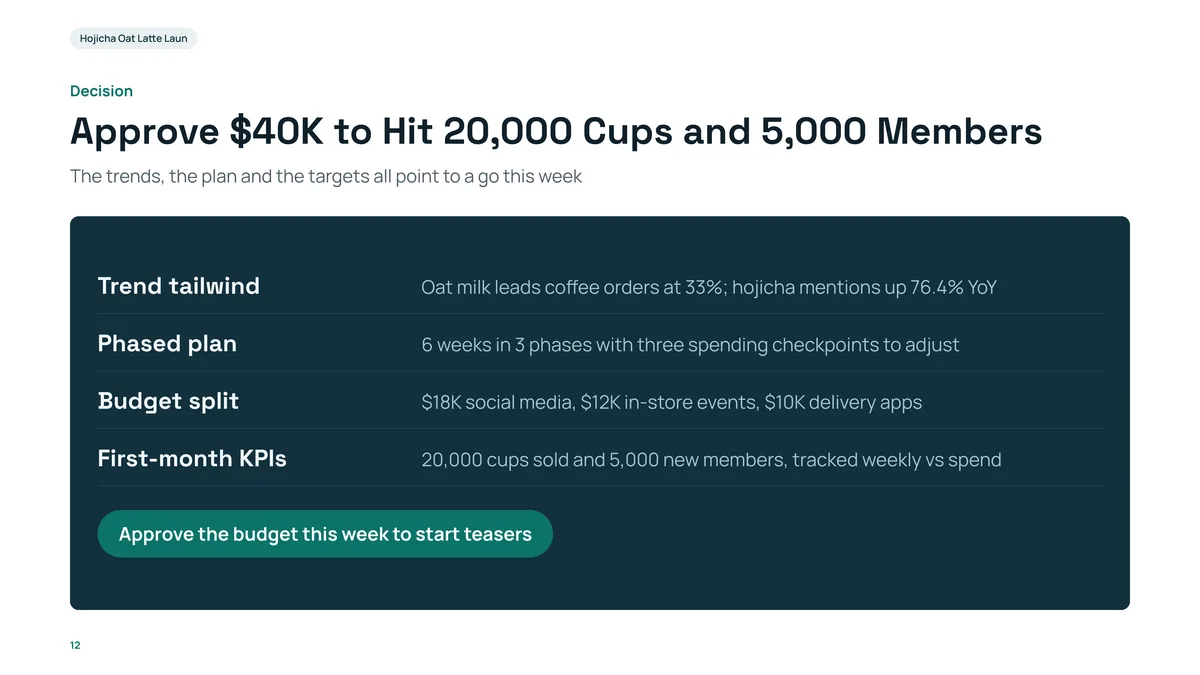
- Every number you typed is on the slide: $40K, 20,000 cups, 5,000 members, 6 weeks in 3 phases. The title states the decision the deck is asking for.
- The $18K / $12K / $10K split of the budget was not in the prompt: it is the AI's proposal (it adds up to $40K). Check a split like this, and change it on the outline card or in the editor, before you present.
- The market line ("oat milk leads coffee orders at 33%") comes from the web research step, and the editor shows where each figure on a slide came from.
What to put in the prompt
The prompt above has five parts, and each one changed the deck:
- What and for whom: "a launch marketing plan", "for the management team". The AI picks the structure and the tone from this.
- Length: "12 slides". The outline has exactly that many cards (up to the current maximum per deck).
- Your facts: the budget, the 6 weeks, the two targets and the three channels. These appear unchanged on the slides.
- What to look up: "how oat-milk coffee and hojicha drinks have done over the past two years". This is what the research step works on.
- What to avoid: "don't name real brands or companies".
If you have the material already, attach it instead (PDF, Word, Excel, PowerPoint or a web page): the AI then reads your files rather than the web, and the outline follows them.
Quick mode or deep mode?
Quick mode is 1 credit per slide and fits most reports, proposals and lessons: the slides come from a library of layouts and you can switch the theme in one click afterwards. Deep mode is 3 credits per slide: the AI designs each slide and checks it from a screenshot, which suits information-dense decks, but you cannot switch themes in one click afterwards.
Slides that do not come out are returned to your credits.
What stays your decision
The AI writes the first draft; you decide what goes in. Before you present, check three things:
- Figures from the web: open the sources list in the editor, and ask for "Add a sources page at the end" when you export.
- Numbers the AI proposed because you did not give them (a budget split, a price, a date).
- The order of slides: the outline cards can be dragged around before you generate.
Questions
Can AI make a whole presentation from one prompt?
Yes. Describe the topic, audience and length, and the AI writes an outline and then the slides. The recorded example above went from one paragraph to 12 slides in 97 seconds. You should still read the outline and the slides: the AI can propose numbers you did not supply.
How much does it cost?
Writing the outline and exporting are free. Quick-mode slides are 1 credit each, deep-mode slides 3 credits each and an AI edit 1 credit. The example used 13 credits (12 slides and one edit). New accounts get free credits, and credit packs are one-time purchases with no subscription. See the Pricing page.
Can I edit the outline before the slides are made?
Yes. The outline comes first: edit the cards, reorder, add or delete them, or have the AI rewrite one. The slides are only generated when you click "Generate presentation".
Can I export to PowerPoint?
Yes. Export as PowerPoint (.pptx) or PDF. In the PPTX the text is in text boxes you can edit in PowerPoint or Keynote.
Does it use real data or make numbers up?
When you attach no files, the AI looks up the topic on the web and shows its sources. It can also propose figures that you did not give it, such as a budget split, and those are its suggestions, not facts. Attach your own files to keep the content to your material.
Can I use my own PowerPoint instead?
Yes: see the guide on editing an existing PowerPoint with AI, where the AI changes your uploaded file in place and keeps your design.
Describe your presentation
Write a few sentences, check the outline the AI drafts, and get slides you can edit and export.
Make a presentation