Does an AI presentation maker add speaker notes?
Updated 2026-11-06
Gamma AI Slide does not. The exported PowerPoint (.pptx) has editable slide text and no notes: we opened the PPTX files of our three recorded example decks and none contains a notes part, and the editor is instructed that the deck has no speaker notes. The slides carry what the audience reads.
You can still present from notes. Below: how to add them in PowerPoint in a minute per slide, a timing rule for the script, a prompt that makes the slides themselves carry more of the explanation when the deck will be read without you, and what we have not tested.
How to add speaker notes to the exported PowerPoint
Export the PowerPoint
In the editor click "Export" and choose PowerPoint (.pptx), the editable one. The picture-only version has no editable text, so use the editable one. Exporting is free.
Open it in PowerPoint and show the notes pane
In PowerPoint choose "View" and then "Notes". A box labelled "Click to add notes" appears under each slide.
Paste your script, slide by slide
Write or paste what you will say for each slide. Keep the slide text short and the notes full; check the slide number before you paste.
Check the length of the script against the time
Count the words of the notes: at a typical speaking pace of about 130 words a minute (a rule of thumb, not a measurement of you), 650 words is about five minutes.
Print or present with notes
Use "Presenter View" to show notes only to you, or print the notes pages. Keep a copy of the script outside the deck as well.
One real slide, and the script that goes with it
The slide below is slide 8 of our recorded launch-plan deck (a made-up coffee brand, October 19, 2026). Counted from the PDF, it holds about 70 words, including the title and the subtitle. What you would say about it does not need to be on it.
The script on the left is a hand-written example for this slide, to show the split. It is not product output.
| On the slide (about 70 words) | In your notes (your script) |
|---|---|
| Title: "Phase Milestones: Three Checkpoints" | Open with the reason: we do not want to find out in week 6 that a channel failed |
| Week 2: awareness gate | Say what you will look at and who decides to move money |
| Week 4: mid-point gate, 10,000 cups | Say why half the target by week 4 is the line |
| Week 6: final gate, 20,000 cups, 5,000 members | Say what happens if you miss: which channel loses budget first |
Notes for slide 8 (hand-written)
Slide 8: Phase milestones
We will not wait until week 6 to learn that a channel is not working. At week 2 we look at reach and teaser engagement and, if signals lag, we move social spend. At week 4 we should be at 10,000 cups, half of the first-month target; if not, we rebalance. At week 6 we judge the whole campaign against 20,000 cups and 5,000 new members.
(About 80 words, roughly 35 seconds at a normal pace. Written by hand, not generated.)
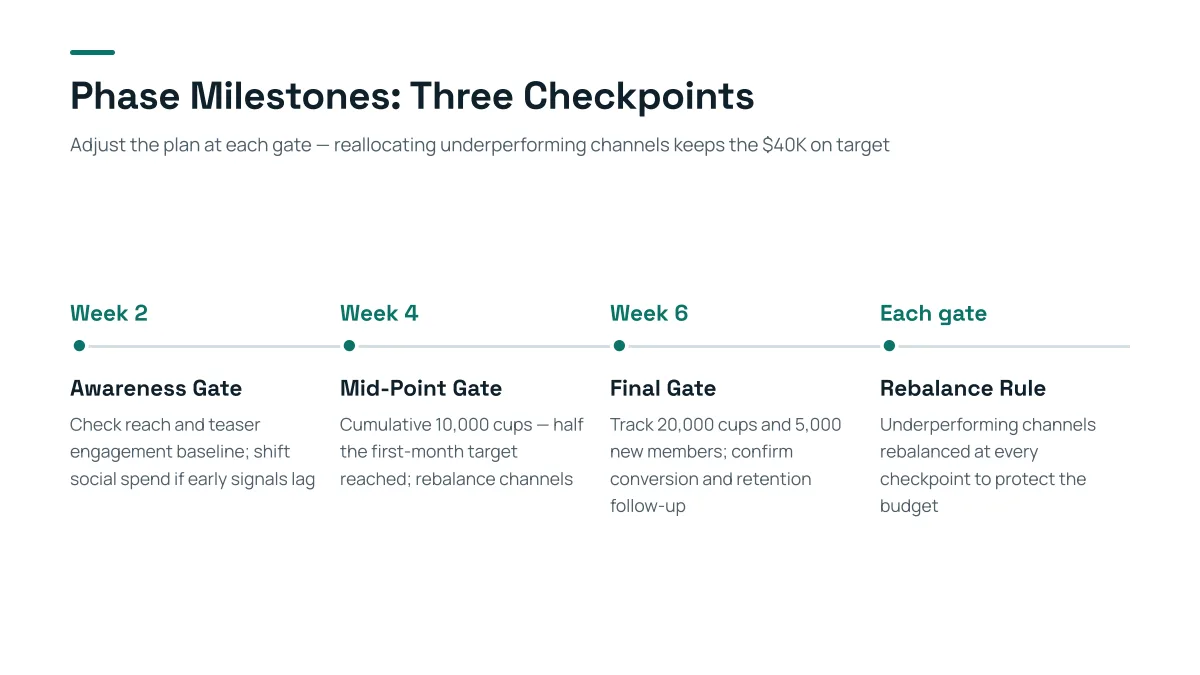
- The slide shows the checkpoints; the reasons and the consequences are in your voice.
- The numbers on the slide (10,000 cups at week 4, 20,000 and 5,000 at week 6) come from the request and the AI's own arithmetic; check them before you speak them.
- Anything you write in the notes in PowerPoint is yours: the product never sees it.
Can I get the AI to write my talk script?
Not as notes. The product makes slides, and its output is the slide text. You can use the "Text per slide" setting to put more explanation on the slides (below), or write the script yourself and keep it in the PowerPoint notes or in a separate document.
What if the deck will be read without me?
Then put the explanation on the slides: set "Text per slide" to Detailed (about 150 words) or Extensive (about 210) and ask for full sentences. A template for the request, not a recording:
"Make a 10-slide briefing that will be emailed and read without a presenter. Each slide: a title that states the point, then 3 to 4 full sentences that explain it, with the key figure in the first sentence. No speaker notes are needed."
Dense slides are fine on a laptop screen and hard on a projector; for a live talk choose Minimal or Concise and keep the script in your notes.
What about notes in a PowerPoint I upload?
We have not tested it. The product can change an uploaded PPTX in place ("Change this PPT"), but the example file we recorded had no notes, so we cannot say whether notes survive an edit. Keep a copy of the original and check the notes pane after the product returns the file.
Questions
Does Gamma AI Slide export speaker notes?
No. The exported PowerPoint has editable slide text and no notes. We checked the PPTX files of our three recorded examples and none contains a notes part. Add notes in PowerPoint under View, Notes.
How do I add speaker notes to an AI-made presentation?
Export the editable PPTX, open it in PowerPoint, choose View then Notes, and paste your script under each slide.
How long should my script be?
A common rule of thumb is about 130 words a minute for speaking, so a slide of one to two minutes takes roughly 130 to 260 words. It is a guideline; time yourself once.
How many slides can I make?
From 1 to 30, and the cover counts. See the guide on how many slides to use for a talk length.
How much does it cost?
Writing the outline is free. Quick mode costs 1 credit per slide, deep mode 3, each AI edit 1, and exporting is free. New accounts get 20 free credits; credit packs are one-time purchases (for example $5.99 for 40 credits plus 10 bonus) with no subscription, and credits never expire. See the Pricing page.
Make the slides, keep the script
Write the claims, choose a low text level, export the PPTX, and paste your script into the notes.
Make my slides