How to edit an existing PowerPoint with AI and keep its design
Updated 2026-11-04
Most AI presentation makers take your PowerPoint as material and build a new deck from it, with their own template. Gamma AI Slide can also do the opposite: change the file you upload in place. Choose "Change this PPT" on the file, say what to change, and the AI edits the words and slides you asked about. Slides you do not mention stay exactly as they were.
There is no outline and no template in this mode. Your slide masters, fonts, colours, pictures and charts are kept, and the export is your own .pptx with the changes, still fully editable in PowerPoint. Each request costs 1 credit; editing by hand, deleting and reordering slides, and exporting are free.
Four steps
Add your PowerPoint and choose "Change this PPT"
Click "Add files" on the home page and pick your .pptx. A PowerPoint file asks how to use it: choose "Change this PPT".
The other choice, "Use as material", reads the file and makes a new deck from it, which may rewrite and redesign it. Nothing is sent until you pick one.
Say what to change
Write the request in the box, then click the arrow to send it. For example:
- "Fix the typos and make the tone right for a formal report. Don't change any numbers."
- "Translate the whole deck into English."
- "Add a cover and a closing slide."
- "Summarize slide 6 into three bullet points."
The editor opens straight away and the AI changes the file: it rewrites text in text boxes and tables, deletes or reorders slides, and adds new slides with the layouts your file already has.
Check what changed and keep going
Every request is saved as a new version. Open "Versions" and click "Compare with the one before" to see each changed slide side by side, with the changed words marked. "Undo this slide" puts back one slide; "Restore this version" goes back to a whole version.
Ask for more in the AI panel. Above the box, "Edit" sets how far a request reaches: "This slide", "Picked slides" or "Whole deck". Writing "only edit slide 3" sets it for you.
To fix a word yourself, click any text on the slide and type; that is free. "Edit in browser" opens the file in a full editor, where you can also change fonts, colours and positions.
Export your own file
Click "Export" and choose PowerPoint (.pptx). It is your original file with the changes: every slide, chart and text box stays editable. PDF is there too.
If you change more in PowerPoint, Keynote or WPS, upload it back with "Upload your edited file" under "Versions". It becomes the next version and the AI carries on from it.
A real example: a messy 8-slide update, polished in place
This is the recorded run behind our "Polishing an existing PPTX" replay (October 19, 2026). An 8-slide project update full of chatty wording and typos was added with "Change this PPT", and two requests were sent:
- "Polish the whole deck: tighten the wording on every slide, use one term for each thing, fix the typos, and make the tone right for a formal report. Don't change any numbers or the layout."
- "Summarize slide 6 into three bullet points, and add a "Summary and next steps" slide at the end."
The first request came back about 15 seconds after it was sent and changed the text on all 8 slides. The second took about 8 seconds: slide 6 became three bullets and a ninth slide was added. The two requests used 2 credits.
Product Team Q3 Project Update.pptx
Membership System Revamp
- The membership revamp went live on Sep 22, which is about a week later then we planned.
- After the revamp the sign-up conversion rate for new members went up from 3.1% to 4.0%, we think the close rate improvement is pretty big.
- We also tweaked the points rules while we were at it, and existing members basically haven't complained.
- Next we're going to double check the member tier logic again to see if their are any edge cases.
(The slide text word for word, typos included. Slide 4 of 8.)
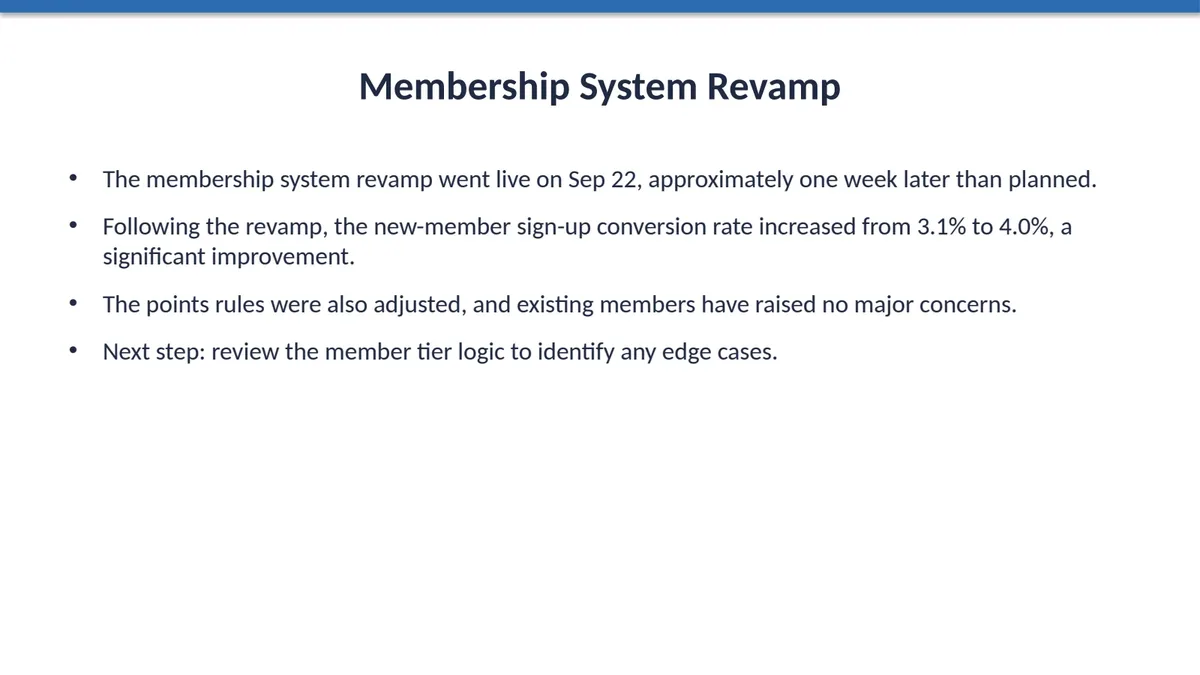
- The typos are gone: "later then we planned" is now "later than planned", and "to see if their are any edge cases" is now "to identify any edge cases".
- The figures are untouched: Sep 22, 3.1% and 4.0% are exactly as they were.
- The title, the bullets, the font and the text box stay where they were; only the words changed. In the exported PPTX this is still the same editable text box.
What the AI changes, and what stays
The AI can:
- Rewrite, shorten, proofread or summarize text in text boxes and table cells
- Translate the whole deck or a few slides
- Delete, reorder and add slides (new slides use the layouts already in your file)
What stays as it is:
- Slides the request does not reach: their content in the file is not touched
- Pictures, charts, colours and the position of every shape
- The formatting of the words you keep: a bold or coloured figure stays bold or coloured when the sentence around it changes
The AI cannot change chart data, pictures, colours, font sizes or positions, or text that is part of a picture. It says so in its reply and does the rest of the request. Make those changes yourself in "Edit in browser" or in PowerPoint.
When the new text is longer
Translations and rewrites are often longer than the original. When new text would not fit its box, the box is first widened into free space, then the text wraps and the box grows, and only then is the text set smaller (down to 60% of its size, and never below 8 pt). Boxes side by side keep the same size.
The reply names any slide where text still does not fit, so you can shorten it by clicking it, or adjust it in PowerPoint and upload the file back.
Which files work
- PowerPoint .pptx files up to 25 MB and 30 slides. Save an old .ppt as .pptx in PowerPoint first.
- Google Slides: File → Download → Microsoft PowerPoint (.pptx), then add that file.
- Keynote: File → Export To → PowerPoint, then add the .pptx.
- The slides you see in the editor are drawn from the file by LibreOffice, so a font or an effect can look slightly different from PowerPoint. The exported .pptx is the real result.
Questions
Can I upload a PowerPoint to an AI presentation maker and keep my own design?
Yes. Add the .pptx and choose "Change this PPT". No template is applied: the AI only changes the words and slides your request is about, and you export the same file with your masters, fonts and charts.
Will it redesign my slides?
Not in this mode. If you do want a fresh design, choose "Use as material" instead: the AI reads your PowerPoint, writes an outline and builds a new deck with a template.
Can it translate a PowerPoint into another language?
Yes. Ask, for example, "Translate the whole deck into English". Every text box and table cell is translated on its own; numbers, formulas and names stay as they are, and longer text is fitted as described above. Text inside pictures is not translated.
How much does it cost?
Each request to the AI is 1 credit, and it is returned if nothing could be changed. Clicking to edit text, the browser editor, uploading an edited file, deleting and reordering slides, and exporting are free. New accounts get free credits, and credit packs are one-time purchases with no subscription. See the Pricing page.
Is my file used to train AI?
We do not use your files to train AI models. The text of your slides is sent to AI providers to make the changes. See the Privacy Policy for details.
Try it on your own deck
Add a .pptx, choose "Change this PPT" and say what to fix. You can compare every change and undo any slide.
Add a PowerPoint and start