How do I make sprint review slides with AI?
Updated 2026-11-09
A sprint review deck is short: about 6 to 10 slides that say what the sprint goal was, what was delivered against what was committed, what you will demo, what was not finished and why, and what feedback or decisions you need. The demo itself is best done live; the slides carry the context around it. Keep the numbers on one slide and the demos on one slide each.
To build it with Gamma AI Slide, export your sprint’s tickets as a CSV or Excel file (there is no live Jira, Linear or Azure Boards connection), add a few lines of notes and your demo screenshots, write the slide order in the request, check the outline cards, and generate an editable PowerPoint. Writing the outline is free; a quick-mode slide is 1 credit, so an 8-slide review is 8 credits.
What we have and have not done: we have no recorded sprint review. The picture below is a different real recording (a course proposal) and the sprint export in the example is made up. The structure and timings are common practice, not a rule. The product steps and limits come from the interface and the code, read 2026-11-09.
Six steps from sprint export to review deck
Export the sprint and trim it to the columns a slide needs
From your tracker, export the sprint’s tickets as CSV or Excel (.xlsx). Keep only: ticket key, summary, story points (or count), status, and whether it carried over. Delete columns with customer names, emails or internal comments: the text of your files is sent to AI providers.
CSV and Excel files are read as tables. A sheet longer than 2,000 rows is summed by one column instead of being read row by row, which does not matter for a sprint of a few dozen tickets. Each file can be up to 25 MB.
Write the sprint goal and the result in your own words
Add a short note (a .txt, .md or Word file, or the request box): the sprint goal in one sentence, whether it was met, partly met or not met, one line per demo item (what changed for the user), the reason for each unfinished item, and the decision you need from stakeholders. The AI can read the export, but only you know why a ticket slipped.
Text typed in the request box is read up to the first 8,000 characters when the outline is written; a file is read up to about 24,000 characters across all files.
Write the request and attach the files
On the home page, click "Add files", add the export, your notes and the demo screenshots (PNG or JPG), and paste the request below with your numbers. Click "Next". Choose "Quick mode" (1 credit per slide): a review is a plain, repeatable deck and does not need deep mode (3 credits per slide).
Check the outline against the structure table
Under "More", set the scenario to "Work report", the tone to "Professional" and "Text per slide" to "Concise" (about 100 words). Audience: "Clients" or "Executives" for stakeholders outside the team, "Teammates" for an internal review. The list has no "stakeholders" option; say who is in the room in the request. After changing these, regenerate the outline.
Compare the cards with the table on this page. Pick the layout "Key figures" for the committed-versus-delivered card (2 to 4 figures), "Table" for the not-finished card (2 to 5 columns, at most 6 rows) and "Timeline" or "Cards" for the next sprint. A card that states a number your files do not contain says "Not in your materials: … It will be written as TBD". Nothing is charged until you click "Generate presentation".
For the demo slides, set "Pictures" to "My uploads". A demo card then uses the layout "Image + text". Which screenshot lands on which slide is decided during generation; move or replace a picture in PowerPoint if one is on the wrong slide.
Generate, then check every number against the tracker
Click "Generate presentation". Open the export panel: it shows "x / y figures have a source" and lists the figures that have none. Click a number on a slide to see the file and the place it came from. The check tells you where a number came from, not whether your team counts points the same way every sprint.
For a burndown or velocity chart, ask in the editor: "Turn the numbers on slide 5 into a line chart" (1 credit). See the guide on charts for the six chart types.
Export, add your notes and rehearse the demo
Click "Export" and choose PowerPoint (.pptx) or PDF. Exporting costs no credits, but it needs Level 2 (any credit pack, bought once) or one new person invited per deck. The exported PowerPoint has no speaker notes, so write yours in PowerPoint. Run the demo once against the slides: the slide stays on screen while you show the real product.
An 8-slide structure with timings, and the numbers slide
This is our suggested structure for a 45-minute review with a live demo (common practice, not a standard). The slides take about 33 minutes; the rest is discussion.
| # | Slide | What goes on it | Minutes |
|---|---|---|---|
| 1 | Title | Sprint number, dates, team, who is presenting | 0.5 |
| 2 | Sprint goal and result | The goal in one sentence, and "met", "partly met" or "not met" | 2 |
| 3 | Committed vs delivered | Three numbers: committed, done, carried over | 2 |
| 4–5 | Demo | One slide per demoed item: the user problem, what changed, a screenshot | 15 (live) |
| 6 | Not finished | A table: item, status, reason, what happens next | 3 |
| 7 | Feedback and decisions | What you need from the room, with a name and a date for each | 5 |
| 8 | Next sprint | The next goal, the main risks, any dependency | 3 |
Add a quality slide (bugs found, test status, or a burndown line) between 6 and 7 if your stakeholders ask for it. The picture is slide 3 of 10 in our recorded course proposal (Data Literacy 101, 2026-10-20, deep mode): two large numbers, each with a label, and one sentence that reads them. It is not a sprint. It shows how a numbers slide for slide 3 comes out: two figures, large, and a sentence that says what they mean.
sprint-24-issues.csv
Sprint 24 · 5 of 21 rows shown
Request to paste with it: “Using the attached sprint export and notes, make an 8-slide sprint review for stakeholders outside the team. Order: title; sprint goal and result; committed vs delivered; two demo slides (what changed for the user, with the screenshot); what was not finished and why; feedback and decisions we need; next sprint goal. Use only the numbers in the files and write TBD where one is missing. Each slide title is a statement, not a label.”
| Key | Summary | Points | Status | Carried over |
|---|---|---|---|---|
| SHOP-412 | Saved cards on checkout | 5 | Done | No |
| SHOP-415 | Address autocomplete | 3 | Done | No |
| SHOP-418 | Order history filters | 5 | Done | No |
| SHOP-421 | Refund status page | 8 | In review | Yes |
| SHOP-423 | Email receipts in Spanish | 3 | To do | Yes |
(Made-up data. Replace the slide order with yours and keep the last sentence about numbers.)
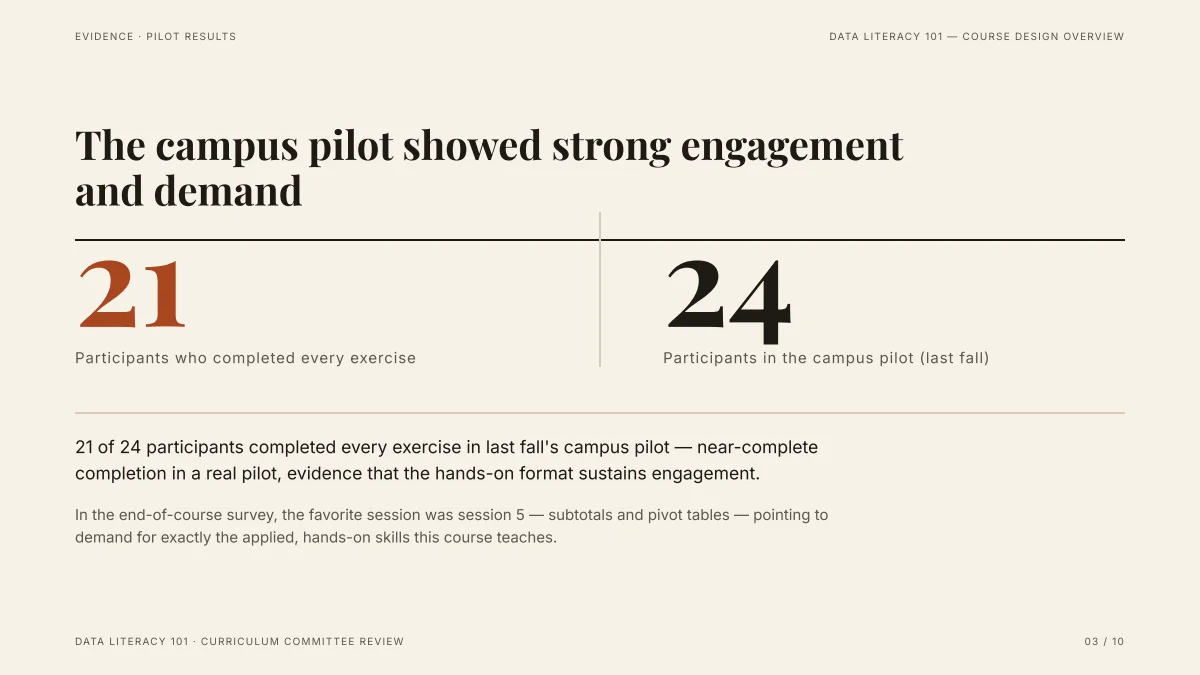
- The title states the finding, so stakeholders get the point from the title alone. For a sprint: “We delivered 18 of 21 stories; 3 carry over”.
- Two large numbers with labels are the shape for “committed” and “done”. The layout “Key figures” takes 2 to 4 of them.
- These figures came from the draft the request attached. In your deck the same holds: figures that are in your export are traceable, and a figure that is not is written as TBD.
- Replay this run step by step (no sign-in)
- Download the PPTX
- The team-only meeting after the review: retrospective slides
- Weekly status report with a RAG table
- Quarterly business review: KPI table slide
- Make a chart in a slide: bar, line, pie
- Speaker notes: what the export has and does not have
- How many slides for a talk length
How many slides does a sprint review need?
Count one to two minutes per slide and leave most of the time for the demo and the discussion. This is a rule of thumb, not a standard; the product accepts 1 to 30 slides and the cover counts.
| Sprint length | Typical meeting | Slides |
|---|---|---|
| 1 week | 20 to 30 minutes | 4 to 6 |
| 2 weeks | 45 to 60 minutes | 6 to 10 |
| 4 weeks | 60 to 90 minutes | 8 to 12 |
The meeting lengths are our suggestion. The Scrum Guide gives only a maximum (four hours for a one-month sprint, shorter for shorter sprints) and describes the review as a working session with stakeholders, not a presentation. We did not re-check it for this page. Use slides for context and let the real product do the demo.
Which columns of the sprint export feed which slide?
Attach the export and name the slide each column is for in the request:
| Column in your export | Slide it feeds | What to ask for |
|---|---|---|
| Status | Committed vs delivered | Count of Done, In review and To do, as three figures |
| Story points (or count) | Committed vs delivered | Points committed and points done, not only ticket counts |
| Summary | Demo and Not finished | One line per ticket, in user words |
| Carried over | Not finished | A table of what moved to the next sprint |
| Type or label | Quality | Bugs fixed against features, if stakeholders ask |
Do not expect the AI to know your definition of done. If “In review” does not count as done on your team, say so in the request.
How do I show a demo on a slide?
Demo live when you can, and use one slide per item as the frame around it: the user problem as the title, one line on what changed, a screenshot of the finished screen.
- Upload screenshots as PNG or JPG with the other files, then set "Pictures" to "My uploads". A demo card then uses the layout “Image + text”.
- Redact customer names and data in the screenshot before you upload it.
- For a screen recording, put a still frame on the slide and open the video separately; the exported PowerPoint holds pictures and text, not video.
- If a screenshot lands on the wrong slide, move it in PowerPoint: the exported file is editable.
Sprint review, sprint demo and retrospective: what is the difference?
They are different meetings with different audiences, so they get different slides:
| Meeting | Who is there | What the slides are for |
|---|---|---|
| Sprint review | Team and stakeholders | Inspect the result and adjust the plan: this page’s deck |
| Sprint demo | Often the same people | The demo part of a review; one slide per item is enough |
| Retrospective | The team only | How the team works, not what it shipped; usually a whiteboard, not slides |
Do not mix retrospective material into the review deck. A weekly update that is not tied to a sprint is a different deck: see the status report guide.
What do I still do by hand after exporting?
- Text and tables are editable in PowerPoint; charts and icons are exported as pictures, so change the numbers by asking the AI again, not in PowerPoint.
- Speaker notes, animations and transitions: not added; do them yourself.
- Fonts: the file stores font names, not the fonts. If the presenting computer lacks one it is replaced and wrapping can change; export a PDF as a backup.
- Your company template: we have not tested pouring the content into a corporate master. The safest way is to copy the text into your template.
Questions
How do I make sprint review slides with AI?
Export the sprint’s tickets as CSV or Excel, add your sprint goal, result and demo screenshots, write the slide order in the request, check the outline cards and generate. You get an editable PowerPoint. Then check every number against your tracker and rehearse the demo.
What should a sprint review presentation include?
The sprint goal and whether it was met, committed versus delivered, the demo of each finished item, what was not finished and why, the feedback and decisions you need, and the next sprint’s goal. Six to ten slides is usual.
Does it connect to Jira, Linear or Azure DevOps?
No. There is no live connection. Export the sprint as a CSV or Excel file and attach it; the product reads the table. We have not tested any specific tracker’s export format, so check the figures it reports against the tracker.
Will the AI invent velocity numbers?
If your attached files contain figures, a figure that the files lack is written as TBD instead of an invented number, and the export panel lists figures without a source. Figures typed only in the request do not switch that rule on, so put the data in a file.
Can it make a burndown chart?
It can draw a line chart from numbers on a slide or in your message, 1 credit per request. It does not read a burndown from your tracker, so give it the daily remaining points.
Does the PowerPoint include speaker notes?
No. The exported PPTX has text, shapes and tables you can edit, but no speaker notes; write your own in PowerPoint.
Is it safe to upload a sprint export?
The text of your files is sent to AI providers to write the outline and slides. Remove customer names, emails and internal comments first, and follow your company’s rules on what may be uploaded.
How much does it cost?
Writing the outline is free. Quick mode costs 1 credit per slide, deep mode 3, each AI edit 1. Exporting costs no credits, but it needs Level 2 (any credit pack, bought once) or one new person invited per deck. New accounts get 20 free credits; credit packs are one-time purchases with no subscription, and credits never expire. See the Pricing page for the packs.
Are my files used to train AI models?
No. We do not use your files to train AI models. The text of your files is sent to AI providers to write the outline and slides; the Privacy Policy has the details.
Start from your sprint export
Attach the export and your notes, write the slide order, and see the outline cards, and which figures are marked TBD, before any slide is made.
Make my sprint review